Visual types and credit costs
Open the Visuals studio inside any chat (the What would you like to create? panel) to generate an interactive output from your sources. Each type shows its credit cost on the Generate button before you confirm — the costs below are what the studio currently shows for a standard generation.
| Visual | What it creates | Credits |
|---|---|---|
| Cheatcode | Compact AI study sheet | 4 |
| Mindmap | Connected map of ideas and relationships | 3 |
| Flashcard | Quick revision cards | 2 |
| Infographic | Visual summary of key ideas | 4 |
| Presentation | Slide-style deck | 4 |
| MCQ | Interactive multiple-choice quiz | 2 |
| Study Aids | Summaries and memory cues | 4 |
| Q Paper | Practice question paper | 2 |
| Timeline | Events or concepts over time | 2 |
| Comparison | Side-by-side topic comparison | 2 |
| Glossary | Key terms and definitions | 2 |
| Image NEW | AI-generated image inspired by your sources | 8 |
| Audio book NEW | Audiobook, podcast, or judge-led debate audio from your sources | varies by format |
note
Credit costs are shown live in the generation dialog and may change — always check the Generate button before confirming. See How credits work for how your balance is spent and replenished.
Generating a visual
- Click a visual type in the studio panel.
- Choose what to generate it from — the current conversation, a topic you describe, or an attachment.
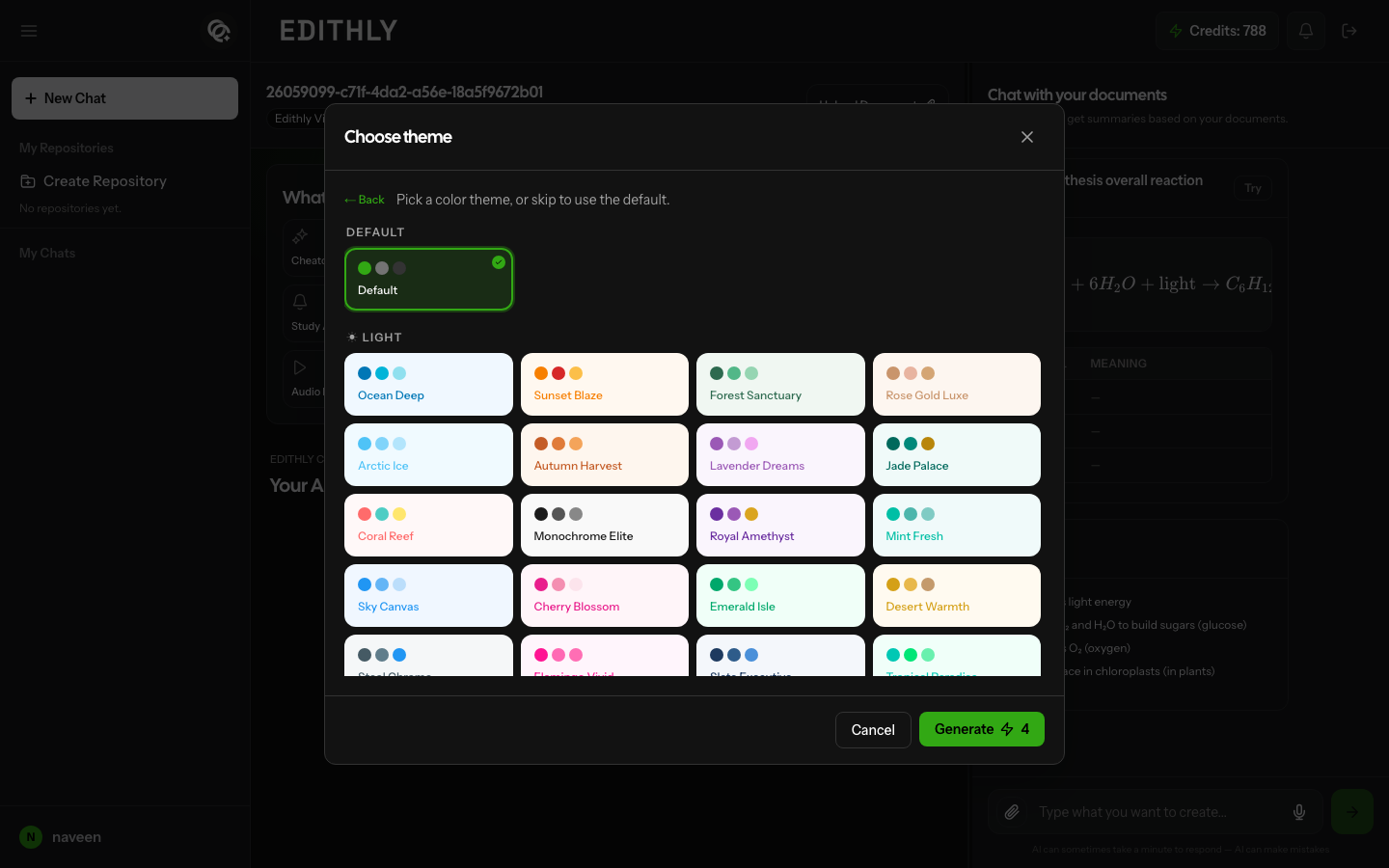
- Some types let you pick options first (for example, a color theme for a Cheatcode).
- Confirm the credit cost shown on Generate and click it.
After generation
Finished visuals appear under Your Artifacts in the chat's Edithly Canvas. From there you can preview, export (where supported), and share them — see Sharing and exporting.
Audio book formats
Audio book is a small studio of its own — choosing it opens Choose audio type with three formats:
| Format | What it is |
|---|---|
| Audiobook | Long-form narration for documents and attachments |
| Podcast | Conversational audio generated from the selected content |
| Debate | Judge-led debate with two opposing teams |