Generate your first visual
The fastest way to learn Edithly is to generate one visual end to end.
1. Start a chat
From the home page, either:
- Type a short question or topic and press Enter, or
- Click Attach to add a document, website, YouTube link, or pasted text first
Edithly creates a chat session and opens it. If you attached sources, wait for the ingestion progress indicator to finish — generation quality depends on it.
2. Open the Visuals studio
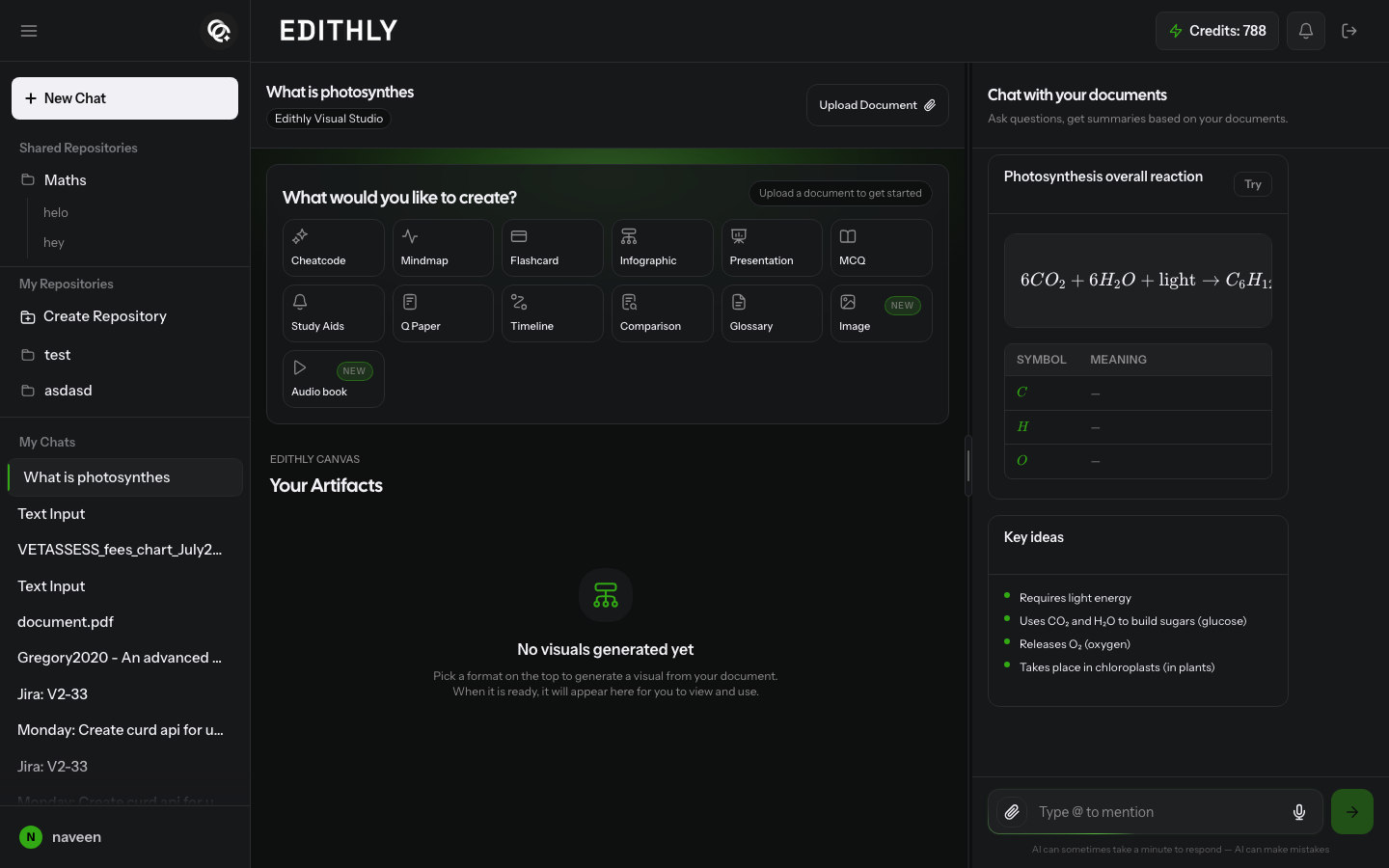
Inside the chat, the Edithly Visual Studio panel shows What would you like to create? with a row of visual types (Cheatcode, Mindmap, Flashcard, Infographic, Presentation, MCQ, Study Aids, Q Paper, Timeline, Comparison, Glossary, Image, Audio book).
3. Pick a visual type and a source
Click a visual type to open its setup dialog. Depending on the type, you can usually generate it:
- From the current conversation — uses your chat as context
- Based on a topic — describe a topic; no chat history or document needed
- From an attachment — uses a document you've attached to the chat
4. Confirm and generate
Some visual types let you pick options first (for example, a color theme for a Cheatcode). The Generate button shows the credit cost for that generation — confirm you have enough credits, then click it.
5. View, export, and share
When generation finishes, the visual appears under Your Artifacts in the chat's Edithly Canvas. Open it to:
- Preview it in full
- Export it (where supported — for example, as PDF)
- Share it as a public link anyone can open without an account
See Visual types for what each type produces and how many credits it costs, and Sharing and exporting for export and share details.